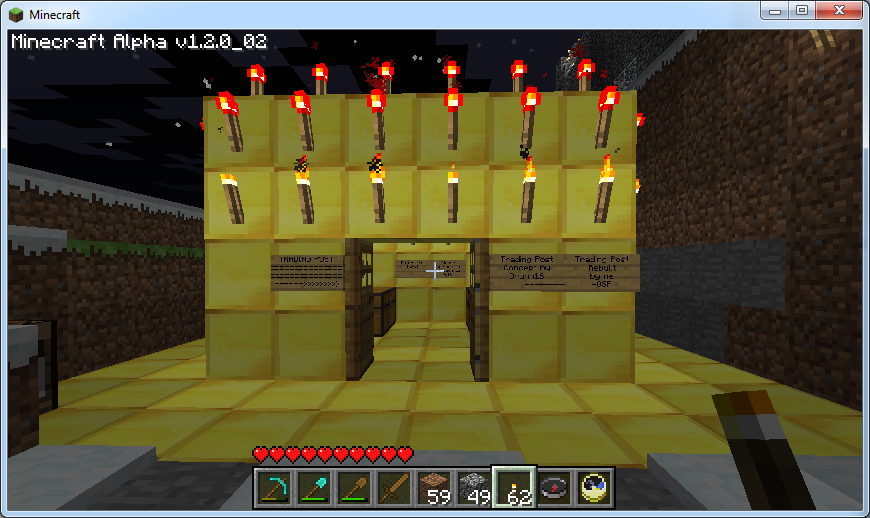
Money & Trading

Your money

The currency in Uncovery is called 1 “Unc” or 100 “Uncs”. Sue me for not being more creative. You earn money either by selling items in the shop (see below), or by voting for the server. You can check and deal with your money with these commands:

  • /money – Show how much money you havey
  • /money pay <player> <amount> – Pay a player money
  • /money help – Displays the help documentation

Uncovery Shop

You can trade goods through our very own virtual shop. It is not physically located somewhere, you use it with commands. The shop does NOT allow you to simply sell to or buy from a system in unlimited quantities. If you want to sell something, you offer it on the market at a price, and wait until someone buys it. Or you request something for a price and wait until someone sells it to you. So you use the commands

  • /offer for goods to sell that others can then /buy, or you can
  • /request goods you’d like others to /sell to you. Further you can
  • /buyxp which gives you 1 XP for 10 Uncs.

Everything offered and requested in the shop is stored under an ID. In order to sell & buy, you need to know that shop-id. You can find that out by either looking for a specific user’s offered or requested items or find a specific item and then picking from the list of users that offer/request that item.

Do not place overpriced stuff into the shop such as dirt blocks for 10k. The shop is for trading, not for free storage. I will reset your account balance, and if you continue to abuse the system, eventually ban you.

Here is a quick intro about the most basic commands thanks to colossal921:

Here is a flowchart that explains all the 4 different processes:

Commands Reference:

Please use the following commands to access the shop from in-game. Offers and requests are broadcast to all players in-game, but purchases and sales (i.e., completing a transaction) notifies only the players involved.

  • {ro} – In this place specify r, req, or request for requests, and o, off, or offer for offers.
    If nothing is specified, the command assumes offer
  • <…> – Arguments in angled brackets are required for the command to run.
  • [...] – Arguments in square brackets are optional.

In-Game Help

/shophelp Show overview of commands
/shophelp [command] Show detailed help for [command]

Listing requests and offers by player

/list {ro} Show your requests/offers
/list {ro} Show requests/offers from

Cancelling Requests or Offers

/cancel {ro} [amount] Use /list to find the <shop-id> first
/cancel {ro} <shop-id> Cancel offer by <shop-id>
/cancel {ro} <shop-id> [amount] Cancel [amount]

Finding requests or offers by item, enchantment, or price

/find {ro} [item] Searches requests and offers. Accepts only ids or names.
Use /search if you do not know the proper term.
/find Find offers for the item in your hand. This can be combined with other arguments, like price.
/find {ro} new Find listings for new items
/find {ro} any Find listings for any items. Useful for ench or price search while ignoring the item in your hand.
/find {ro} [item-id] Find by item-id (see minecraft wiki)
/find {ro} [item-name] Find by name
/find {ro} ench Find all enchanted items
/find {ro} ench:[name] Find items with specific enchantment [name]
/find {ro} <[num] Find items priced over [num]
/find {ro} >[num] Find items priced under [num]
These arguments can be combined:
/find diamond <80
Find diamonds priced under 80
/find <2 Find listings for whatever is in your hand priced under 2

Offer items for sale in the shop

/offer Search your inventory for the item currently< in your hand, and sell all of them at existing price. This only works if you have an existing offer for the item.
/offer [price] As above, but specify a price.
/offer [price] [amount] Sell only [amount] in the shop.
/offer … silent … Specify “silent” as any argument to offer to suppress the sales announcement. Useful when posting large amounts so as not to spam everyone.
/offer … check … Specify “check” as any argument to show what this command would do without actually performing any action. Useful for “checking” your arguments are correct.

Buy offered items from the shop

/buy [amount] Use /find to find the <shop-id> first (NOT the Item ID)
The <shop-id> is the offer number in the shop listing
/buy <shop-id> <amount> Buy <amount> from the shop
/buy … check … Specify “check” as any argument to show what this command would do without actually performing any action. Useful for “checking” your arguments are correct.

Request other players sell you items at a certain price in the shop

/request <item> <price> <amount> Make a request to buy.
You must specify the item, the price, and the amount you’d like to buy.
/request … check … Specify “check” as any argument to show what this command would do without actually performing any action. Useful for “checking” your arguments are correct.

Sell requested items to the shop

/sell [shop-id] [amount] Sell <amount> to the shop.
You must be holding some of the item in your hand.
/sell … check … Specify “check” as any argument to show what this command would do without actually performing any action. Useful for “checking” your arguments are correct.

Finding the proper names of items

strong>/search <term> List item names containing <term>

View a list of recent transactions by player or by item, or enchantment

/history Show your recent sales
/history [itemname] Show recent sales of [itemname]
/history ench:[name] Show recent sales of items enchanted with [name] enchantment
/history sell Show your recent sales
/history buy Show your recent purchases
/history buy [plauyer] Show [player]s recent purchases

Show summarized information on recent sales (advanced)

/info The default is to show the top 10 items by total value in uncs sold in the past 7 days. You can change this using any combination of arguments below:
    [days] Look back this many days for transactions (default is 7)
    <itemname> Only count sales of <itemname>
    ench:<name> Only count items with enchantment <name>
    buyer:<player> Only count <player>’s purchases
    seller:<player> Only count <player>’s sales
    buyers Group and results by buyer
    sellers Group and results by seller
    value Rank results by total combined value (default)
    each Rank results by average price each
    amount Rank results by total quantity
    sales Rank results by number of sales
    least Show bottom 10 instead of top 10
Example: /info sellers glowstone 30 Show the top 10 sellers of glowstone in the last 30 days, by value in uncs.
Example: /info buyers dirt amount Show the top 10 buyers of dirt by amount (total quantity of items) in the past 7 days.
Example: /info diamondpick least each Show the bottom 10 diamondpicks (which are listed by different enchantments), sorted by average price each. That is, least expensive set of enchants first.

Show item price trends (advanced)

/trend The default trend compares the past 7 days of sales to the previous 7 days, only counting items with at least 2 sales in each period. You can change this using any combination of arguments below. If there aren’t enough transactions in history for the parameters you ask for, the command will tell you there is not enough information to give you a trend.
    [days] Look back this many days for transactions
    >[sales] Show items with at least this many sales
    <itemname> Only count sales of <itemname>
    ench:<name> Only count items with enchantment <name>
    up Show biggest positive change (price gain)
    down Show biggest negative change (price loss)
Example: /trend up >10 Show items with biggest increase in price, only counting items with at least 10 transactions in the past week and previous week.
Example: /trend glowstone Show the current price trend for glowstone (by default comparing the last week with the previous week)

Buying experience for Uncs

/buyxp <amount> Purchase [amount] Uncs worth of XP. This means XP points, not levels!

Shop Statistics
You can see the current contents of the shop and historical data on this page.

Uncovery Deposit

There is also a deposit function that allows you to deposit goods for yourself or other players. If you have something in your deposit, you will get a notification upon login. Everyone has a limited amounts of slots to deposit goods for others or receive goods from others, depending on the userlevel. There is no limit to the amount of items of the same kind you can put into one slot however. If you deposit something for another user, you can still withdraw it again until the recipient withdraws it himself.

/depotlist Show items you deposited or received and their depot-id
/deposit Deposit the currently held item
/deposit Deposit all of the item for
/deposit [amount] Deposit only [amount] for
/withdraw <depot-id> Withdraw the items deposited at <depot-id>
/withdraw <depot-id> [amount] Withdraw only [amount]
/withdraw @sender Withdraw all items from @sender, e.g. /withdraw @lottery
/withdraw all Withdraw everything from your deposit in one go.

A sample /depotlist output with the depot-id and the name & quantity of items deposited.

Deposit Slots per User Level

Level Donator Status
Regular Donator DonatorPlus
Guest 0 N/A N/A
Settler 0 1 2
Citizen 1 2 3
Architect 2 3 4
Master 3 4 5
Elder 4 5 6
+5
-1